|
|
|
View Region is used in the API to pan/zoom to focus on a specific region in the picker view. Creation: Activate the view region tool For creation, you need to click on an area where there are no existing view regions underneath, or the non-hotspot area.
Edit:
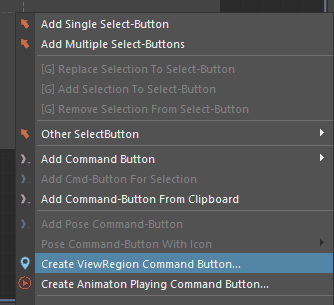
There are 9 hotspots in a view region as shown in the image above. Click within these hotspots and drag to resize/move the view region. The cursor will help you to know what operation will be performed. Double-click on the region area to rename the region. The name needs to be unique for API use, so if you input a name that is already used, it will use the closest name instead. In the context menu, there are many editing features. The edit that view region supports are: •- Remove •- Bring Up / Send down to edit the stack order between view regions. •- Copy & Paste & Duplicate. To create a command button that activate the view region with animation, right click on picker view area with Edit Tool / CommandButton Tool / View Region Tool:
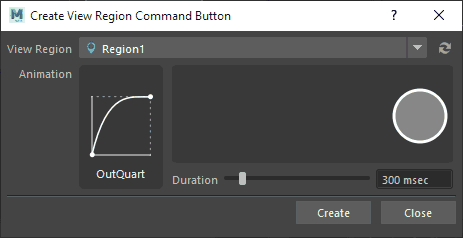
Choose the view Region you want to activate, choose the easing type, tweak the duration, click on the top-right area to preview the animation using a ball, and hit the "Create" button to create the command button on the click point. Animator then can click on this button to go to that view region. The code comes with the command button is using the MGPickerViewRegion API for the animation and activation, check the link for more information. |
|
|