|
|
|
MG-Picker Studio currently supports two types of animation: 1.View Region activation animation. Check here for more information. 2.Generic property animation using the Animation Item •Animation Item: The animation item is a virtual picker item that is not graphically visible in the picker scene but can only be found in Outliner or in the Animation Editor. An animation item can hold animation for animatable properties of other graphical picker items (the items other than viewRegion and animation item). Animation can be created/edited/previewed in the Animation Editor, and can be played back by command buttons, etc, using the API.
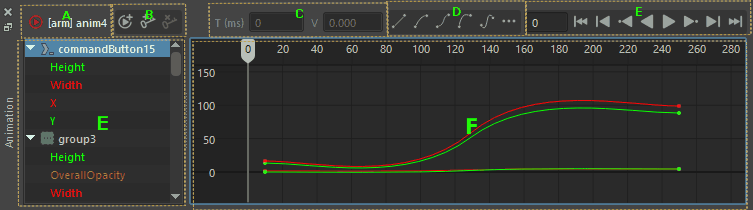
•Animation Editor:
It is pretty similar to DCC graph editors like Maya. Area A: Click to browse the existing animation items, and load them into the Animation Editor. Area B:
Area C: The time and value edit field that sets the time and value of the selected keyframes in area G. Area D: Set the easing type of the selected keyframes in area G. Area E: The playback and frame quick jump buttons. Area F: The tree widget shows the animated properties in the animation item. Area G: The animation curve edit view. The horizontal axis shows the time, in milliseconds, and the vertical axis shows the property value.
•Duplicate / Mirror Animation Item: In the Outliner, right-click on the animation item to duplicate the animation item for further editing, or mirror the animation item. The mirror action is based on the graphical picker item's mirror relationship; the property of the animation item will be mapped to its mirrored item's property, and the name string of the animation item will also be processed.
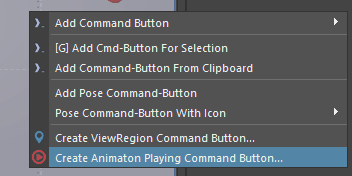
▪Playback Animation in your picker: To create a command button that plays back the animation, right-click on the picker view area with the Edit Tool / CommandButton Tool:
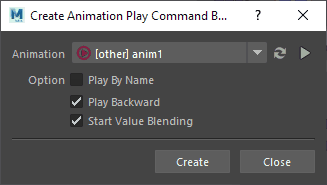
Choose the animation you want to playback, check the playback options, and hit the "Create" button to create the command button on the click point. The code comes with a new command button that uses the MGPickerAnimation API for the animation playback, check the link for more information. In the attribute editor, if you select an existing command button/attribute button, go to its command area, and there is also a way to insert the code to activate a view region:
Playback Options: Play By Name: If on, it will play all the animation items by the selected name. There might be multiple animation items been played. Otherwise, it will play single animation item by its ID. Play Backward: Play the animation in a reversed way. Start Value Blending: Whether to start the animation playback with the current picker item property states. The picker items can be in any state; without this option turned on, there might be a pop as the animation always starts with the starting keyframe values. Defer Hiding Until Playback Finished: The option is for inserting playback code in the attribute button's postChanged command editor. Since the attribute button might turn off picker items' visibility, this option stops these items from being hidden until the animation on them finishes playing back, so that the animation can actually be seen. |
|
|


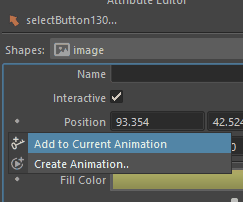
 Currently, only numerical properties are animatable; these properties will have a dot button in the Attribute Button, where you can click to create an animation item / add a property to an existing animation item: